
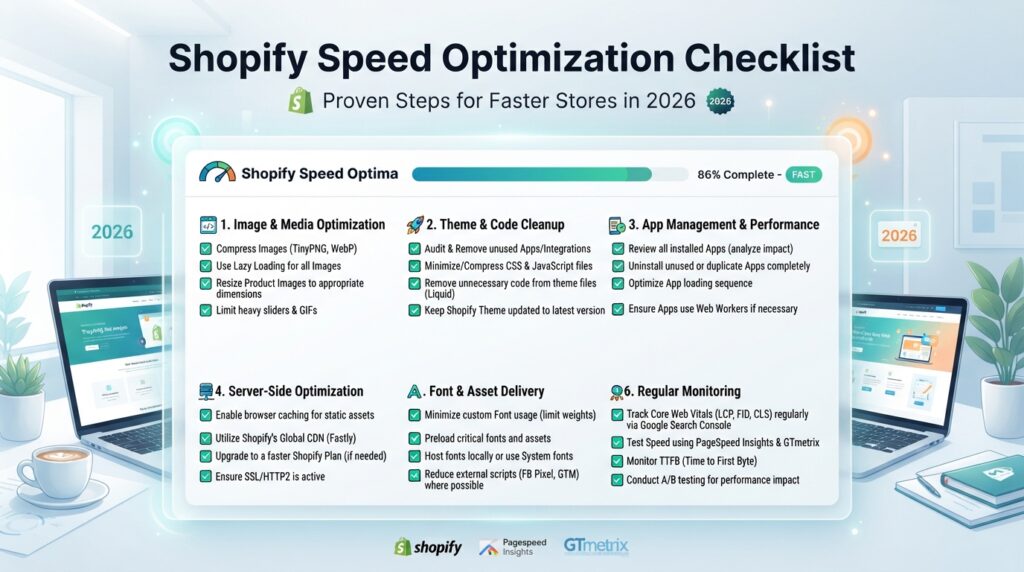
Introduction
A Shopify speed optimization checklist only matters if you actually run it end to end, not just skim it once and move on. Most US store owners already know speed affects sales. What they don’t know is which fixes actually move the needle versus which ones just look good on a to-do list.
A one-second delay in load time can cost a meaningful chunk of conversions on a mobile storefront, and Shopify stores are disproportionately mobile-heavy compared to other e-commerce platforms. This guide walks through a practical, prioritized Shopify speed optimization checklist built from real store audits, not generic theme documentation.
By the end, you’ll know exactly what to fix first, what to ignore, and how to keep your store fast as you add new apps, products, and campaigns.
Why Speed Is a Revenue Problem, Not Just a Technical One
Store owners tend to treat speed as an IT issue. It isn’t. Slow pages increase bounce rate, reduce add-to-cart actions, and inflate your cost per acquisition on paid ads because Google and Meta both reward faster landing pages with cheaper clicks.
Core Web Vitals, Google’s real-user performance signals, also factor into page experience and can tip close rankings in your favor when competing storefronts have similar content and backlinks. A Shopify speed optimization checklist isn’t a vanity project. It’s a direct lever on revenue.
Step 1: Establish a Real Baseline Before Changing Anything
Before touching a single setting, test your current performance on your homepage, your best-selling product page, and your highest-traffic collection page. Run each test three times and average the results, since single runs can be noisy.
Use Google’s PageSpeed Insights to separate Lab Data (simulated tests) from Field Data (real visitor behavior). Field Data matters more for SEO because it reflects how actual US shoppers, often on mid-range phones and inconsistent mobile connections, experience your store.
Document these baseline numbers. Every future change in your Shopify speed optimization checklist should be measured against this starting point, not against a theoretical “perfect score.”
Step 2: Fix Images First, They’re the Biggest Culprit
Images are almost always the single heaviest asset category on a Shopify store. Compress every product image before upload, aim for well under 200KB per image, and prefer modern formats like WebP or AVIF where your theme supports them.
Don’t lazy-load the image that renders first on the page, usually your hero banner or the primary product photo, since lazy-loading your Largest Contentful Paint element actually slows it down. Everything below the fold should lazy-load. Everything visible on first paint should not.
Add explicit width and height attributes to every image so the browser can reserve space before the file loads, which prevents layout shift and protects your Cumulative Layout Shift score.
Step 3: Audit and Remove Unnecessary Apps
Most Shopify stores run somewhere between eight and fifteen apps, and each one typically injects its own JavaScript, sometimes on every page regardless of whether it’s needed there. This is the second-biggest speed killer after images.
Go through your installed apps one by one. For each, ask whether it’s still actively used, whether it could be replaced by a native Shopify feature, and whether it loads globally or only where it’s needed. Uninstall anything answering “no” to the first question, and check your theme code afterward for leftover script tags, since uninstalling an app doesn’t always remove its footprint cleanly.
This single audit is one of the highest-leverage items in any Shopify speed optimization checklist because app bloat compounds silently over months of store growth.
Step 4: Clean Up Theme Code and Minify Assets
A poorly optimized theme can ship 400 to 500KB of code when the actual functional need is closer to 100KB. Minify your HTML, CSS, and JavaScript, and remove deprecated snippets, unused sections, and old app remnants sitting in your theme files.
Defer any script that isn’t required for the initial page render. Analytics pixels, chat widgets, and review app scripts almost never need to block the page from becoming interactive, so load them after the critical content appears.
Step 5: Control Font Loading
Multiple font families, or multiple weights of the same font, each generate a separate network request that delays rendering, especially on mobile. Limit your store to one or two font families and only the weights you’re actually using in the design.
Preload your primary font file and use font-display: swap so text renders in a fallback font immediately rather than staying invisible while the custom font downloads.
Step 6: Optimize for Core Web Vitals Directly
LCP, INP, and CLS are the three Core Web Vitals metrics Google weighs most heavily. LCP measures how fast your main content appears, INP measures how responsive the page feels to interaction, and CLS measures how much elements shift around while loading.
Any Shopify speed optimization checklist that skips these three metrics is incomplete, because generic PageSpeed scores can improve while the actual user-facing metrics stay flat. Test each metric independently, not just the composite score, and prioritize fixes that move the specific metric that’s failing.
Step 7: Prioritize Mobile Performance
The majority of Shopify traffic in the US now arrives on mobile devices, often on inconsistent connections. Test your mobile performance separately from desktop, and treat mobile as the primary experience rather than an afterthought.
Heavy carousels, auto-playing video backgrounds, and desktop-sized images served to mobile visitors are common culprits that don’t show up clearly in a desktop-only audit.
Step 8: Fix Checkout and Cart Page Speed
Because Shopify controls the checkout flow at the platform level, most speed problems on cart and checkout pages come from third-party scripts injected via apps: upsell widgets, trust badges, and tracking pixels. Audit what’s loading on these specific pages separately from your homepage and product pages.
A slow cart page is a direct abandonment risk since the visitor has already decided to buy. This step of the Shopify speed optimization checklist deserves the same attention as your homepage, if not more.
Step 9: Set a Maintenance Cadence
Speed optimization isn’t a one-time project. New apps, new product images, and new marketing scripts get added constantly, and each one can quietly erode the gains you made. Re-run your Shopify speed optimization checklist quarterly, or immediately after any major theme or app change, to catch regressions before they affect rankings and conversions.
Key Takeaways
- Establish a documented baseline before making any changes
- Fix images first: compress, use modern formats, and never lazy-load the LCP element
- Audit and remove unused or redundant apps, checking for leftover code
- Minify and defer non-essential scripts in your theme
- Limit font families and weights, and preload critical fonts
- Optimize LCP, INP, and CLS individually, not just an overall score
- Treat mobile as the primary experience, not a secondary check
- Audit cart and checkout pages separately for third-party script bloat
- Re-test quarterly since speed degrades gradually as your store grows
Get Expert Help With Your Shopify Store’s Speed
Running through a checklist gets you partway there, but theme-level bottlenecks, app conflicts, and checkout script audits often need hands-on development work to fix properly. Aura Core Digital’s e-commerce development team specializes in exactly this kind of Shopify performance work for US-based stores.
If your store’s load times are costing you sales, contact Aura Core Digital for a speed audit. We’ll show you precisely which fixes will move your Core Web Vitals and your conversion rate, not just your PageSpeed score.
Frequently Asked Questions
How often should I re-run a Shopify speed optimization checklist?
Quarterly, at minimum, and immediately after installing new apps or changing your theme. Speed degrades gradually as stores add scripts, images, and features, so a one-time fix doesn’t stay fixed on its own.
Will a Shopify speed optimization checklist improve my search rankings?
Yes, indirectly. Core Web Vitals are a confirmed page experience signal, and faster pages also reduce bounce rate and improve user engagement metrics, both of which support better rankings over time, especially against competitors with similar content quality.
What’s the single highest-impact item in a Shopify speed optimization checklist?
Image optimization, followed closely by removing unnecessary apps. These two categories typically account for the largest share of unnecessary page weight on Shopify stores, and fixing them usually produces the fastest, most visible improvement.